 Zinn® Backups
Guides
Connect a site over SSH
Give us SSH access with a key so we can back the site up and restore it for you.
Get SSH details from your host
You need the server address, the SSH port (usually 22), a username, and the folder the site lives in, such as public_html. Most hosts show these in their control panel.
Create a key for us
Create a new SSH key pair used only for backups, and add its public key to the account's authorised keys at your host. Using a dedicated key means you can revoke our access without affecting anyone else's.
Open the site's Backups tab
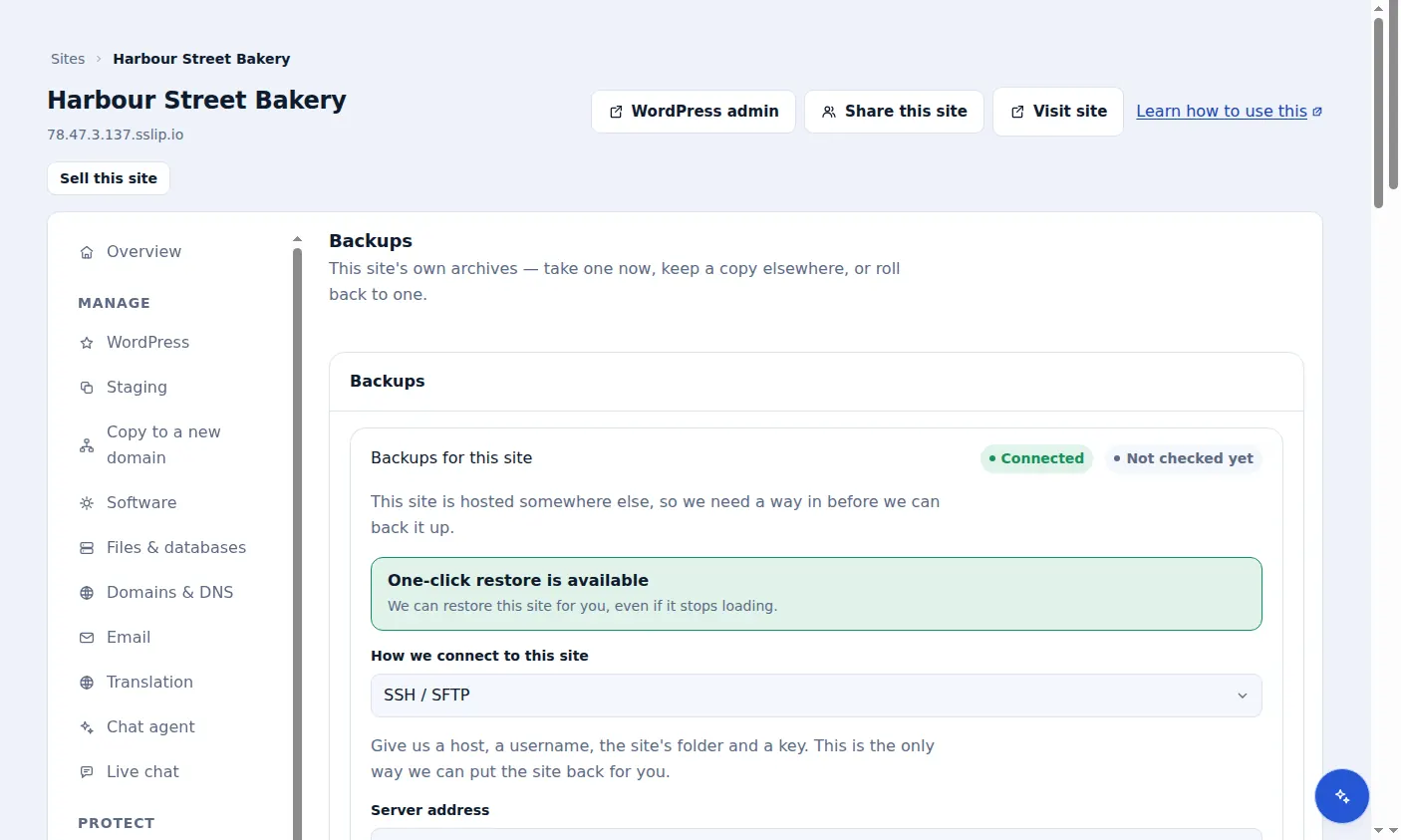
In the dashboard, open the site and its Backups tab. Under How we connect to this site, choose SSH / SFTP.
Enter the details
Fill in Server address, Port, Username, Site folder on the server and paste the Private key, then choose Connect. The key is stored in our secrets vault and is never shown again.
Check it is working
The card shows Connected and, once a backup has run, Working. The notice One-click restore is available confirms we can restore this site for you.
WP-CLI and the database
The database export uses WP-CLI on your server. If WP-CLI is not available, backups still copy the files, and the backup records that no database was included, so ask your host to enable WP-CLI.
Included with Zinn Digital® hosting
Host the site with us and backups are part of the plan
Sites on Zinn Digital® WordPress hosting are backed up by the hosting plan itself, with malware scanning and a firewall included, so there is no separate backup bill. This product is for the sites you keep somewhere else.