 Zinn® Backups
Guides
Restore a site from a backup
Put a site back to an earlier copy in one click, over SSH.
Make sure the site is connected over SSH
One-click restore is available for sites connected over SSH. The site's Backups tab says One-click restore is available when it is.
Pick the copy
Choose the newest copy from before the problem started. If you are recovering from a hack, go back further than the first sign you noticed.
Start the restore
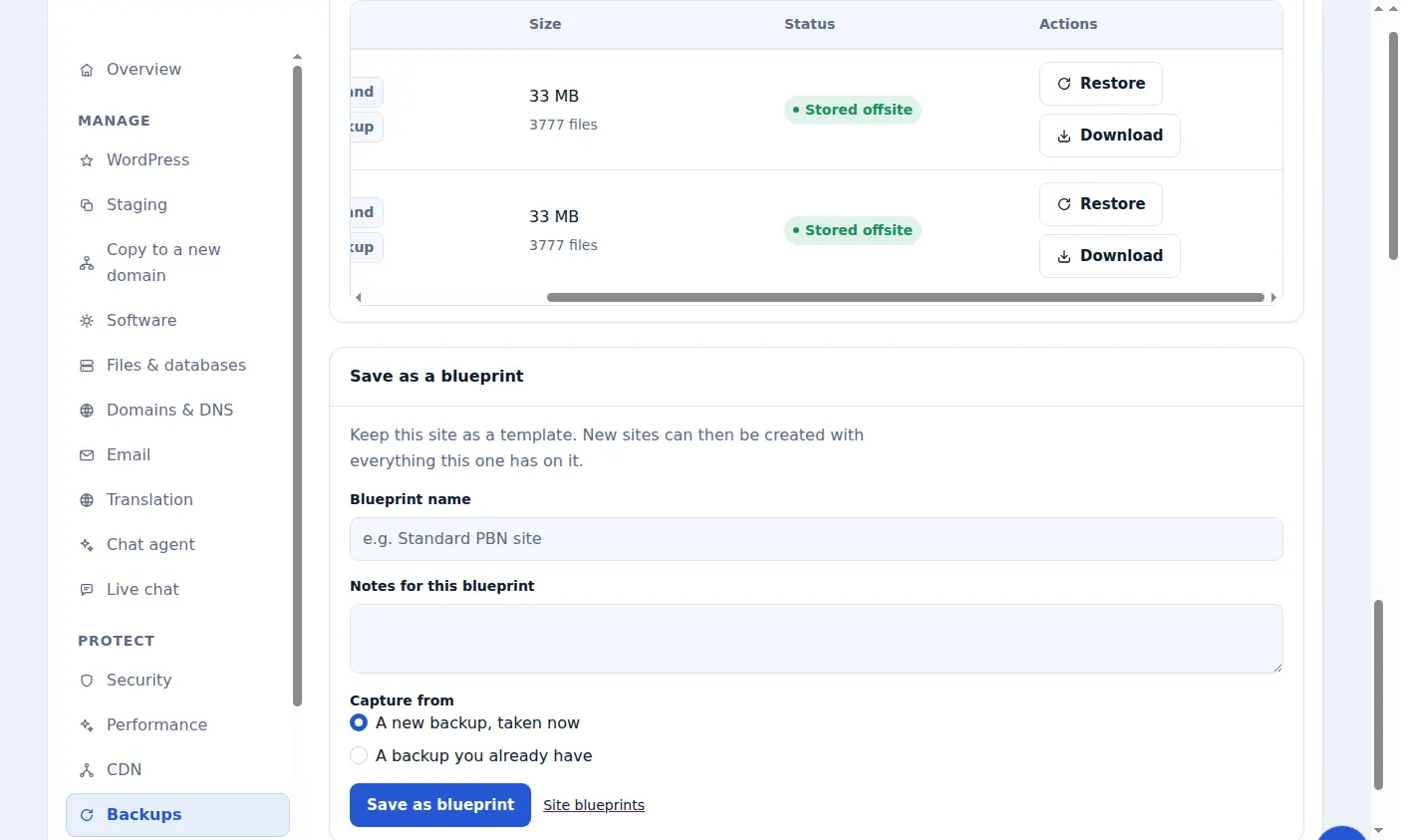
Choose Restore on that copy and confirm. We connect to your server and put the backup's files and database back.
What a restore changes
Files in the backup overwrite the current ones and the database is imported when the backup includes one. Files added after the backup was taken are not deleted.
Check the site
Open the site and sign in to WordPress to confirm it is as expected. Clear any cache your host or plugins keep.
If the site used the plugin
A plugin connection cannot restore. Download the copy and restore it through your host, or connect the site over SSH and restore from the dashboard.
Included with Zinn Digital® hosting
Host the site with us and backups are part of the plan
Sites on Zinn Digital® WordPress hosting are backed up by the hosting plan itself, with malware scanning and a firewall included, so there is no separate backup bill. This product is for the sites you keep somewhere else.